
Game Masters open the settings with the green Edit Campaign button on the overview. Everything on this page saves together with the Update Campaign button at the bottom.
Main Settings
- Campaign Name and Game System — both required, both changeable at any time.
- Campaign Theme — choose Classic Theme, Nebula Theme or Blacklight Theme. This changes how the campaign looks for everyone. Each player can override it in their own player settings if they prefer a different one.
Preference Settings
Allow cloneable data? — off by default. When on, other players can copy certain parts of this campaign's setup into their own campaigns, such as stat groups or an item library. This is useful if you have built a set-up you want to share. When off, only you can clone from it. See 5.0 Cloning Campaign Data.
Disable sell tab on inventory items? — off by default. When on, it removes the Sell tab from inventory items. That tab lets a player sell an item and add its value to their wealth automatically, with the money coming from nowhere and the item going to nobody. Turn it on if you would rather your players sold things to real shops, to each other, or not at all.
Filter the left navigation — a list of features you can tick to hide from the left-hand menu. Useful if your campaign does not use, say, Kinships or Domains, and you would rather not look at them.
About and Game Master Secrets
About is the campaign description your players read on the overview page. Game Master Secrets is a separate box that only Game Masters can see, in a collapsed panel below it. Both accept formatted text and @ mentions.
Campaign Image and Video
Under Campaign Image & Video you can replace the default header picture and add a video.
- Upload Image — accepts .jpg, .jpeg, .png and .gif files up to 3MB. Landscape pictures work best, and around 600 by 300 pixels is a good size. Tick Remove current image to go back to the default.
- Video Link — adds a video to the overview page. If you have a video but no uploaded image, the video replaces the default picture. If you have both, the video appears below the image.
https://www.youtube.com/embed/KJWoyM1Q1tw or https://player.vimeo.com/video/4132816. A normal YouTube watch address will save without any error and then show an empty box on your overview page. If your video is not showing, this is almost certainly why. Edit campaign button
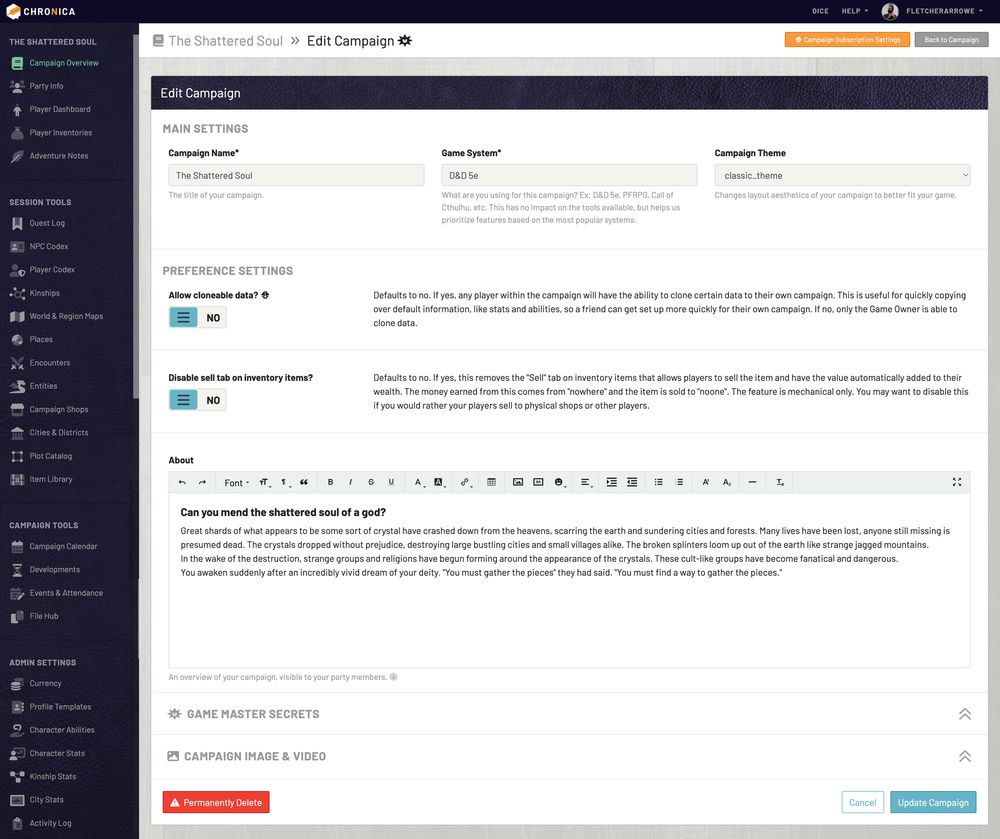 Chronica Edit Campaign screen