
7.6 Player Notes & Links
7.0 Player Dashboard
7.6 Player Notes & Links
Notes
The Notes panel is a private place for your own notes about the campaign. Only you and the Game Masters can see it. Only you can write in it.
- Click Edit Notes. This opens your player settings.
- Write your notes in the Notes box. You can use @ to mention a quest, character, kinship, place or entity.
- Click Update Player.
Links
The Links panel keeps bookmarks you use often, such as a character sheet, a spellbook or a set of house rules. Only you and the Game Masters can see them.
- To add a link, click + Link. Enter a Title and the Link URL, then click Create Link. Type the full address, starting with
http://orhttps://. A link without it may not work. - Turn on New Tab? if you want the link to open in a new browser tab.
- To change a link, click the pencil beside it, then click Update Link. To remove it, click Delete Link in the same window.
A link can point inside Chronica too. For example, copy the address of a map or a quest from your browser and save it as a link.
Game Masters: you can add, change and delete links on a player's dashboard. You can read a player's notes, but not change them.
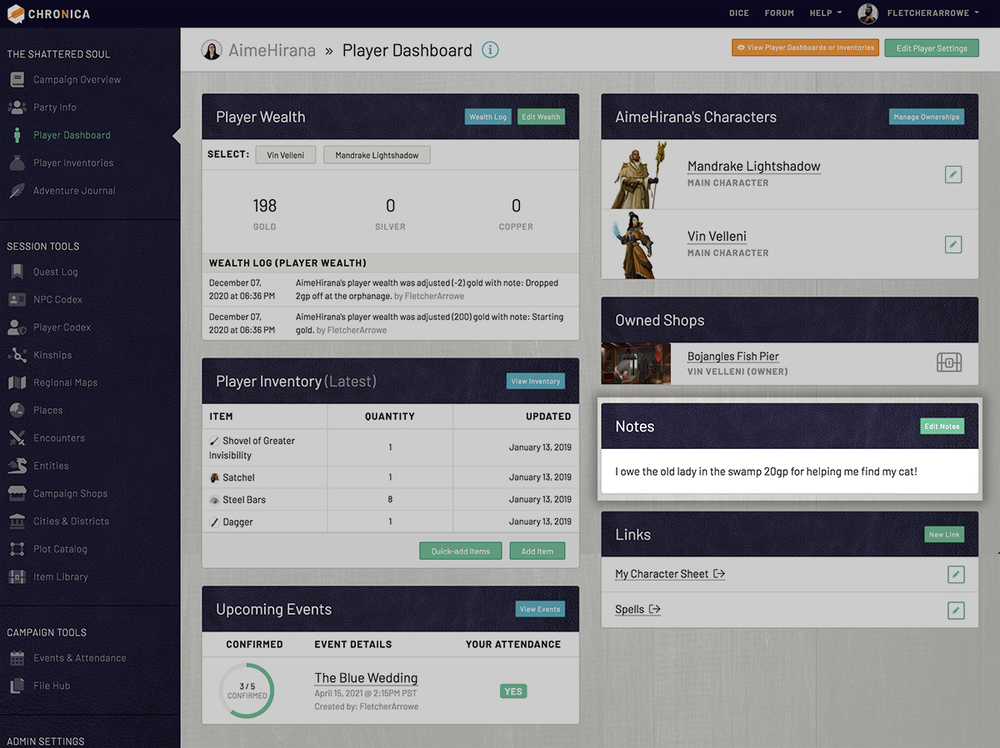 Player dashboard player notes panel
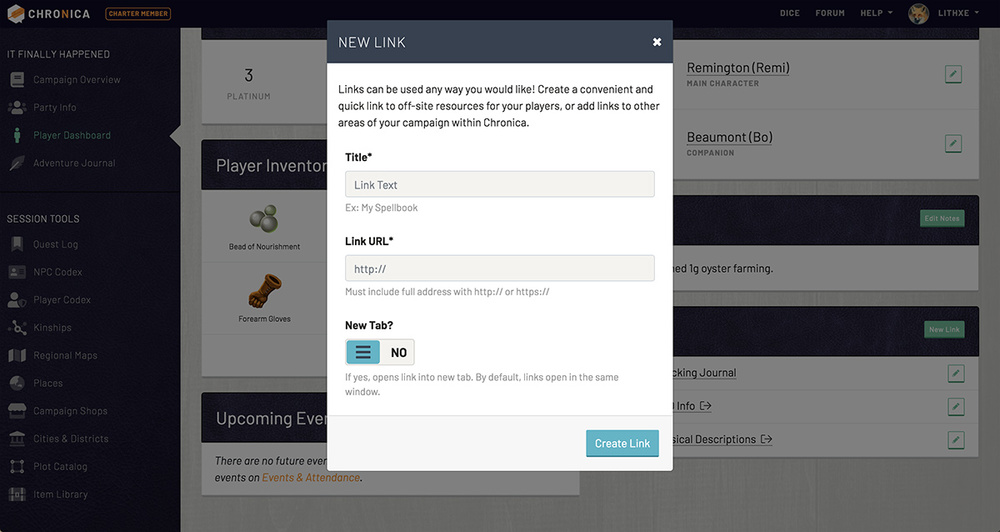 Player dashboard link modal
 Player dashboard links panel